
Using Google Drive on Arch Linux - KDE Plasma
NOTE: i’ve been told that problems exist with KDE, in general - not just KDE Plasma. so, if you’re having trouble getting Google Drive to work with Dolphin, these steps may just work anyway
also
i got this info from Reddit but can’t find the links - sorry about that
initial steps #
first, install kio-gdrive
the following command is to install kio-gdrive on Arch Linux. i use CachyOS in particular but any pacman OS works
obviously, you can install kio-gdrive on other GNU/Linux operating systems
sudo pacman -S kio-gdrivethe problem is that simply installing kio-gdrive doesn’t work at all with KDE
however
it works just fine with GNOME
so, before you go to System Settings, Networking, Oneline Accounts, and add Google
do this first:
kate /usr/share/accounts/providers/kde/google.providerdelete all the contents (every line) and copy and paste this XML doc instead:
<?xml version="1.0" encoding="UTF-8"?>
<provider id="google">
<name>Google</name>
<description>GNOME-ID, Google Drive and YouTube</description>
<icon>im-google</icon>
<translations>kaccounts-providers</translations>
<domains>.*google\.com</domains>
<template>
<group name="auth">
<setting name="method">oauth2</setting>
<setting name="mechanism">web_server</setting>
<group name="oauth2">
<group name="web_server">
<setting name="Host">accounts.google.com</setting>
<setting name="AuthPath">o/oauth2/auth?access_type=offline&approval_prompt=force</setting>
<setting name="TokenPath">o/oauth2/token</setting>
<setting name="RedirectUri">http://localhost/oauth2callback</setting>
<setting name="ResponseType">code</setting>
<setting type="as" name="Scope">[
'https://www.googleapis.com/auth/userinfo.email',
'https://www.googleapis.com/auth/userinfo.profile',
'https://www.googleapis.com/auth/calendar',
'https://www.googleapis.com/auth/tasks',
'https://www.googleapis.com/auth/drive'
]</setting>
<setting type="as" name="AllowedSchemes">['https']</setting>
<setting name="ClientId">44438659992-7kgjeitenc16ssihbtdjbgguch7ju55s.apps.googleusercontent.com</setting>
<setting name="ClientSecret">-gMLuQyDiI0XrQS_vx_mhuYF</setting>
<setting type="b" name="ForceClientAuthViaRequestBody">true</setting>
</group>
</group>
</group>
</template>
</provider>of course, be sure and save the file - it will prompt you for your sudo password and save the file just fine
next steps #
now, go into System Settings
under the Networking section on the left
select Online Accounts
on the upper, right, click + Add Account and choose Google
it should look like
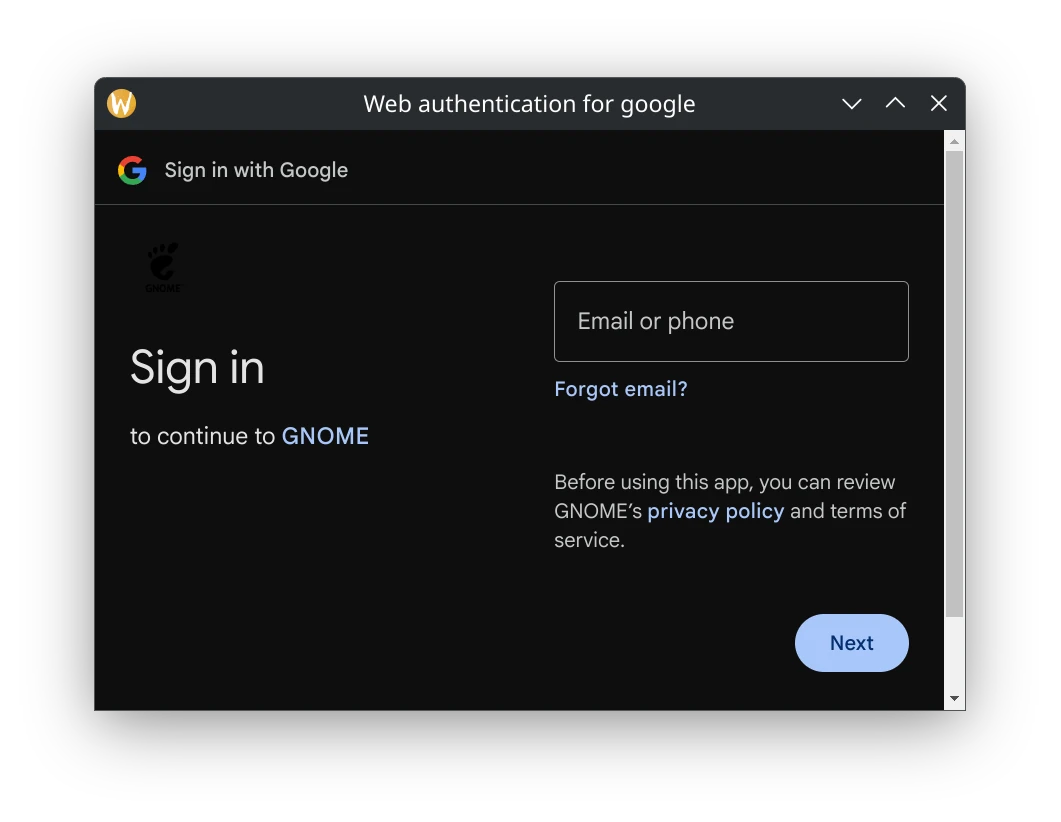
notice it says GNOME and not KDE
enter your Gmail account address and password on the next screens. i use Passkeys, so it’s a bit different for me, but still works
once you’re logged in and given GNOME all the settings, Dolphin will just work, as-is
in Network, Google Drive, of course
and, obviously, you can pin it as well
conclusion #
yes, it’s a bit of work - but very doable
the file, above, is also available for you to just download and use as is - it’s exactly the same as above
File: google.provider
md5sum: a65ed15fb05cb710409434d5f6b87171